
In partnership with

 LUXE PROMPTING
LUXE MODEL FIRST LOOK
MOSS-Image: 3 JSON Layout Prompts for the New Open Model
OpenMOSS released MOSS-Image on October 16: an Apache-2.0 open-weights text-to-image model that takes a JSON layout as its prompt. You list every line of text and every object, give each one a box, and the model draws them where you put them.
It's built for images packed with words: posters, infographics, knowledge cards and interface mock-ups. The 5B model reads prompts of up to 4,000 tokens and renders English and Chinese text. Here are three layouts you can paste into the free demo today.
The Popcorn Brand Turning Heads and Raising Capital

What does it look like when a consumer brand starts to break out?
Popsmith generated $5.8M in revenue in 2025 and is projecting $9M in 2026, with more than 100,000 customers and $20M+ in lifetime sales.
The brand has already earned national recognition through Oprah’s Favorite Things and partnerships with Costco, Sur La Table, and Williams Sonoma, where Popsmith is rolling out nationwide this holiday season.
Now Popsmith is raising capital to accelerate its next stage of growth, and individual investors have the opportunity to become shareholders.
The Short Version
- Boxes are [y_min, x_min, y_max, x_max] in pixels, measured from the center of the canvas, so 0,0 is the middle of the image.
- Three layouts to copy: a step-by-step infographic, a bilingual event poster and a website hero mock-up.
- Set width and height in the demo to the canvas listed with each prompt. The JSON doesn't carry them.
How to use these prompts
Open the MOSS-Image demo on Hugging Face Spaces, paste a whole JSON prompt into the Prompt field and set the width and height listed with it. To run it yourself, the weights (MOSS-Image-Base and MOSS-Image-SFT) are on Hugging Face and load through Diffusers, and there's a ComfyUI plugin. OpenMOSS recommends 50 steps and a guidance scale of 3. SFT is the fine-tuned checkpoint with cleaner text grouping in the project's own comparison; Base is meant for training LoRAs.
Every item has a label (text or object), a caption describing how it looks, the exact words for text items and a bbox. On a 1024 × 1536 canvas, x runs from −512 (left) to 512 (right) and y from −768 (top) to 768 (bottom). Coming from our FLUX 3 Klein prompts? Klein uses a 0 to 1000 grid, so these numbers don't paste across.
OpenMOSS's guide calls layout control experimental, and its best published results use a prompt-enhancer skill that writes the layout for you with an AI agent. Writing the JSON by hand, as below, works without it.
Our example images were not made with MOSS-Image. We generated them with beehiiv's built-in, Gemini-based image tool to show the layout each prompt describes.
1. A step-by-step infographic that stays readable
Long text is where most image models fall apart and where MOSS-Image is aimed. Give every step its own row, with the exact words in the text field.
The exact prompt
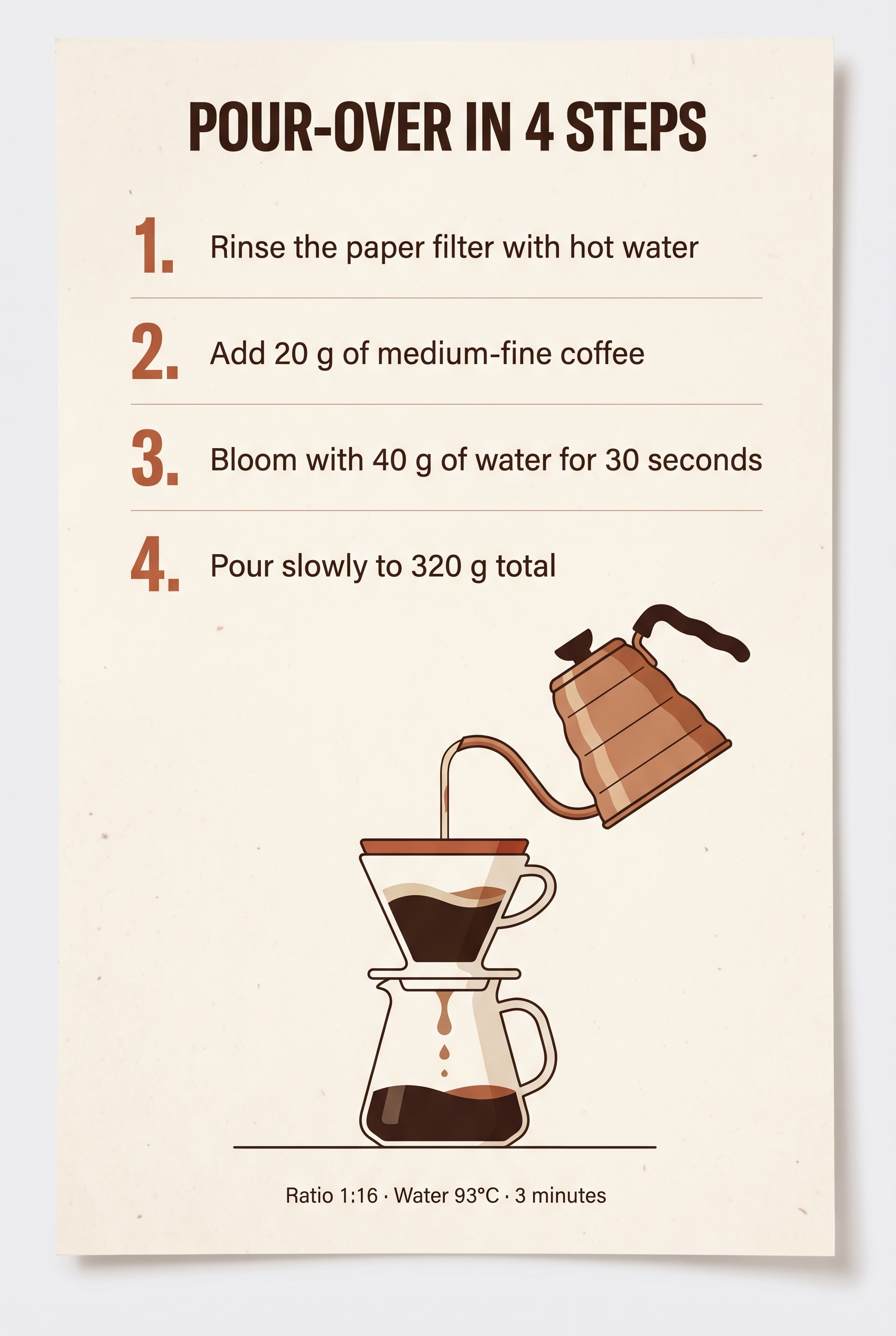
Illustrative example, not made with MOSS-Image: generated for this issue with beehiiv's Gemini-based image tool from the layout below. Your MOSS-Image result will differ.
Canvas: width 1024, height 1536
{"summary":{"meta":["infographic"],"canvas":"single","caption":"A clean vertical coffee infographic on warm off-white paper in cream, dark brown and terracotta, with a bold title, four numbered steps, a flat illustration of a pour-over setup and a small footer line."},"items":[{"label":"text","caption":"Bold dark-brown condensed uppercase title, centered at the top.","text":"POUR-OVER IN 4 STEPS","bbox":[-704,-448,-576,448]},{"label":"text","caption":"Step one in dark-brown sans-serif with a terracotta number, left-aligned.","text":"1. Rinse the paper filter with hot water","bbox":[-528,-448,-432,448]},{"label":"text","caption":"Step two in dark-brown sans-serif with a terracotta number, left-aligned.","text":"2. Add 20 g of medium-fine coffee","bbox":[-400,-448,-304,448]},{"label":"text","caption":"Step three in dark-brown sans-serif with a terracotta number, left-aligned.","text":"3. Bloom with 40 g of water for 30 seconds","bbox":[-272,-448,-176,448]},{"label":"text","caption":"Step four in dark-brown sans-serif with a terracotta number, left-aligned.","text":"4. Pour slowly to 320 g total","bbox":[-144,-448,-48,448]},{"label":"object","caption":"Flat illustration of a white ceramic pour-over dripper on a glass carafe, with a copper gooseneck kettle pouring a thin stream.","bbox":[16,-320,592,320]},{"label":"text","caption":"Small dark-brown footer line, centered.","text":"Ratio 1:16 · Water 93°C · 3 minutes","bbox":[640,-416,704,416]}],"bbox_coord_space":"abs_centralized","bbox_format":"yxyx"}
Why it works: Each step is a separate text item with its own box, so the model never has to decide where one line ends and the next begins.
Try it: MOSS-Image demo (Hugging Face) · MOSS-Image-SFT weights
What to check in your result
Read every line letter by letter, including the numbers and the degree sign in the footer. Then check that the four steps sit in even rows above the illustration rather than wrapping into it.
One variation to try
Swap in your own topic and keep the grid: four rows 96 px tall with 32 px gaps. For five steps, start the first row higher and shrink the illustration box.
2. A bilingual event poster
MOSS-Image was trained to render both English and Chinese. Give each script its own box so the two never merge into one line.
The exact prompt
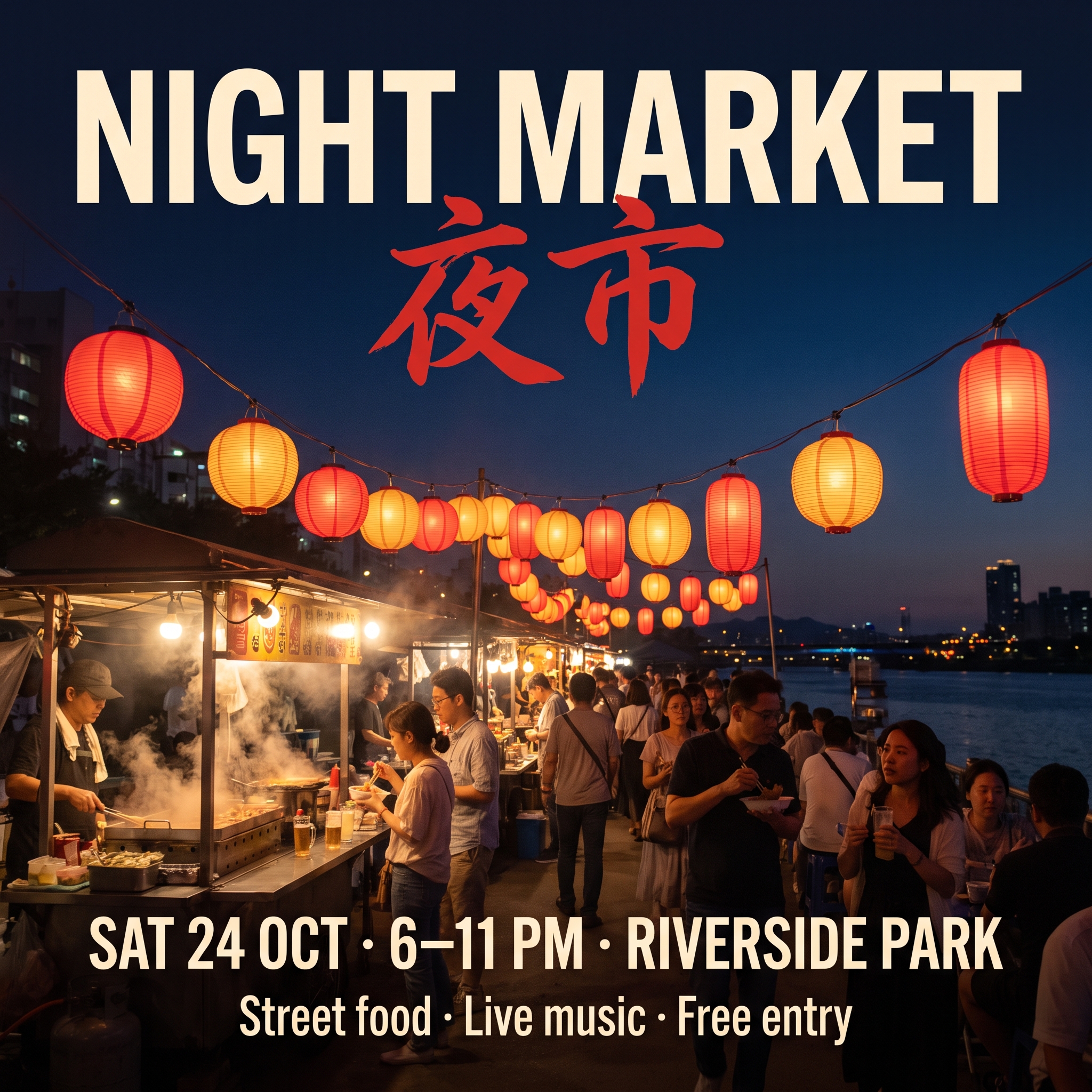
Illustrative example, not made with MOSS-Image: generated for this issue with beehiiv's Gemini-based image tool from the layout below. Your MOSS-Image result will differ.
Canvas: width 1024, height 1024
{"summary":{"meta":["poster"],"canvas":"single","caption":"A square event poster for a riverside night market at dusk: a deep navy sky, a bold English title, Chinese brush calligraphy beneath it, glowing lanterns over food stalls and two lines of event details."},"items":[{"label":"text","caption":"Large bold warm-white uppercase title, centered at the top.","text":"NIGHT MARKET","bbox":[-448,-416,-320,416]},{"label":"text","caption":"Red Chinese brush calligraphy, centered under the title.","text":"夜市","bbox":[-304,-160,-208,160]},{"label":"object","caption":"Strings of glowing red and amber paper lanterns over busy street-food stalls at dusk, steam rising.","bbox":[-176,-480,288,480]},{"label":"text","caption":"White sans-serif event details, centered.","text":"SAT 24 OCT · 6–11 PM · RIVERSIDE PARK","bbox":[320,-416,384,416]},{"label":"text","caption":"Smaller white sans-serif line, centered.","text":"Street food · Live music · Free entry","bbox":[400,-352,448,352]}],"bbox_coord_space":"abs_centralized","bbox_format":"yxyx"}
Why it works: The title, the calligraphy and the two detail lines each get a box and a style caption, and the lantern scene fills the space between them, so text and picture don't compete.
Try it: MOSS-Image demo (Hugging Face) · MOSS-Image on GitHub
What to check in your result
Check that 夜市 is two clean characters, not a lookalike, and that the date line fits on one row. If it wraps, widen its box before you shorten the words.
One variation to try
Change the event, date and place in the text fields. A two-character Chinese word fits the same box; longer strings need a wider one.
3. A website hero mock-up
Interface mock-ups are on OpenMOSS's own list of target images. Boxes keep the logo, navigation, headline and button from crowding each other.
The exact prompt
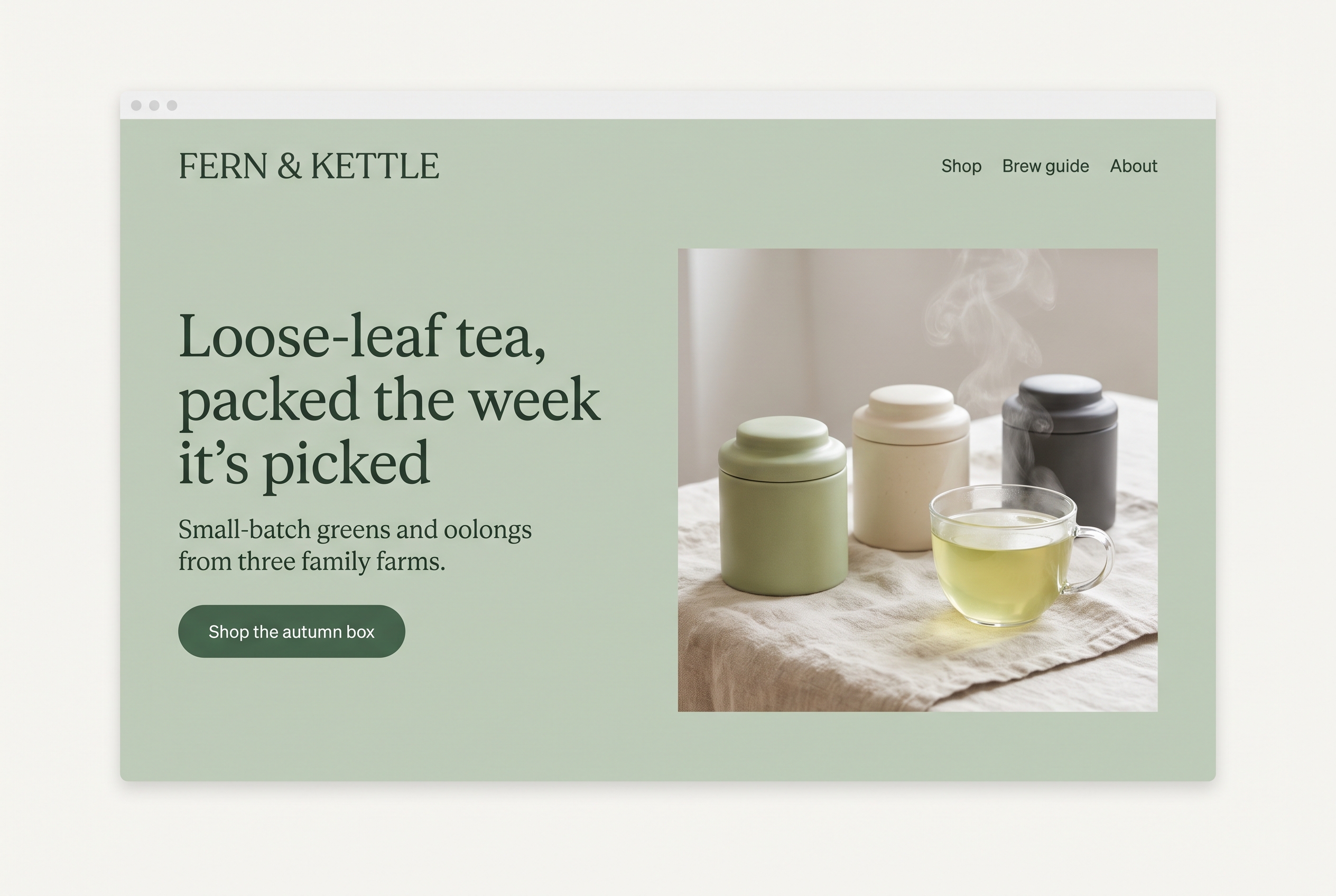
Illustrative example, not made with MOSS-Image: generated for this issue with beehiiv's Gemini-based image tool from the layout below. Your MOSS-Image result will differ.
Canvas: width 1536, height 1024
{"summary":{"meta":["ui"],"canvas":"single","caption":"A flat, front-on screenshot of a website landing-page hero for a fictional loose-leaf tea brand on a soft sage-green background, airy and modern, with the copy on the left and a product photo on the right."},"items":[{"label":"text","caption":"Dark-green serif logo text, top left.","text":"FERN & KETTLE","bbox":[-448,-704,-384,-320]},{"label":"text","caption":"Small dark sans-serif navigation links, top right.","text":"Shop Brew guide About","bbox":[-448,256,-384,704]},{"label":"text","caption":"Large dark-green serif headline on two lines, left-aligned.","text":"Loose-leaf tea, packed the week it's picked","bbox":[-256,-704,-64,-32]},{"label":"text","caption":"Smaller dark-grey sans-serif supporting line, left-aligned.","text":"Small-batch greens and oolongs from three family farms.","bbox":[-32,-704,48,-32]},{"label":"text","caption":"Rounded dark-green button with white sans-serif text.","text":"Shop the autumn box","bbox":[112,-704,192,-384]},{"label":"object","caption":"Soft-lit product photo of three matte tea tins and a steaming glass cup of green tea on a linen cloth.","bbox":[-288,96,416,704]}],"bbox_coord_space":"abs_centralized","bbox_format":"yxyx"}
Why it works: Copy sits in the left half (negative x) and the photo in the right half (positive x), so the layout reads like a real landing page before any styling.
Try it: MOSS-Image demo (Hugging Face) · MOSS-Image-SFT weights
What to check in your result
Check the button: the text should sit inside it, not beside it. Then check that the headline breaks onto two lines inside its box and the navigation stays on one row.
One variation to try
Make it a phone screen: switch the canvas to 1024 × 1536 and stack the items top to bottom (logo, photo, headline, line, button), keeping every box inside −512 to 512 across.
A quick check before you run it
- Order is y first: [top, left, bottom, right], in pixels from the center. Negative y is above the middle, negative x is left of it.
- Keep every box inside the canvas. On 1024 × 1024, no number goes below −512 or above 512.
- Use dimensions that are multiples of 16, and set the same width and height in the demo.
- Put every visible word in a text item's text field, exactly as it should appear, and label realistic AI images where the platform asks you to.
Make one of these yours
Pick one layout and change only the text fields first. Once that works, move one box and see what happens.
When you share it in the community, include the result, the full JSON and the width and height you used.
Source Desk
All three prompts are original Luxe editorial work written for this October 2026 issue, using the summary/items format from the MOSS-Image project page. Model facts come from OpenMOSS's MOSS-Image project page and README (October 16, 2026), the MOSS-Image-SFT model card and AI Lookout's October 17 report. Example images are illustrative and were not generated with MOSS-Image.
MOSS-Image project page · MOSS-Image on GitHub · MOSS-Image-SFT weights · MOSS-Image demo (Hugging Face) · AI Lookout report (Oct 17)
A clearer brief. A more useful result.